Pages

Sunday, June 5, 2016

Easy overclocking with the MSI GTX 960 2G

In a previous blog post, I upgraded my GPU to a MSI GTX 960 2G OC edition. You can view that blog post via this link.

This GPU comes factory overclocked. The reference base clock for this card is 1127 MHz with a boost clock of 1178 MHz. Out of the box, this MSI GTX 960 2G OC is clocked at 1190 MHz with a boost clock of 1253 MHz. The card also features the TWIN FROZR V. This feature allows the fans to turn off when they are not needed. On normal day to day use, I did not even notice the fans turn on at all. This means the card is dead silent.

The disc that came with the card comes with additional software aside from the device drivers. One of the software that came in the disc is the MSI Gaming App. Among other things, the card allows you to change the pattern of the MSI logo glow on the GPU itself from the default steady, to breathing, flashing, or double flashing. It also allows you to select which mode you want the card to be in. The default is the gaming mode which clocks the card at 1190 MHz with a boost clock of 1253 MHz. Other modes you have are the OC mode and the Silent Mode.

Here is the window where you can select the different MSI LOGO LED light mode. Unfortunately, there is no option to change the color of the light other than WHITE.


As for the different MSI Gaming App modes, here's a summery:
  • Gaming mode (default): Base clock 1190 MHz - Boost clock 1253 MHz
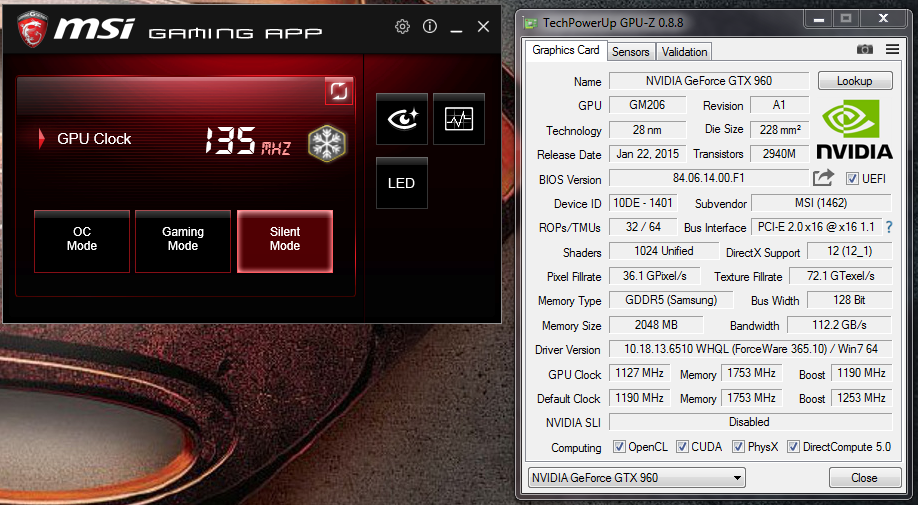
  • Silent mode: Base clock 1127 MHz - Boost clock 1190 MHz
  • OC mode: Base clock 1241 MHz - Boost clock 1304 MHz
While changing the mode, you can actually see the clock reading in GPU-Z change. Take a look at the images below:

Gaming mode

Silent mode

OC mode

Are you using the same GPU? What is your preferred MSI Gamin App mode?

If you want to get the GTX 960 delivered right into your doorstep, you can click this link.

Note: The item indicated in the link is the cheaper Zotac version. Still the same GTX 960 with 2GB of video RAM.

Saturday, June 4, 2016

Poor performance on the Sun Cellular 3G network

I have previously posted about how satisfied I was with our PLDT DSL connection. You can refer to this link to check it out.

I, however, am not satisfied with the speed Sun Cellular 3G provides. In the past couple days, I have performed numerous speed tests on my Iphone 5S to see how it fared and it fared badly. The reason why I did these tests was that I have been called by a Sun Cellular representative offering me their pocket Wi-Fi product. I was told that they now have "fast" internet speeds. I have declined on, at least, 2 occasions.

To give them the benefit of the doubt, I used my mobile phone to test the network speed on a 3G connection and got, at best, 1.11 Mbps for download and a fairly good 1.59 Mbps maximum upload. These tests were done in Labangon and IT park areas.

I did not take a screenshot of the individual tests but here's a summary of a few tests that I made.


Mind you, this is not a problem with the phone as I could get about 3 Mbps using a Globe SIM on the same area. Last year, I tested Smart LTE at IT Park and was able to get over 20 Mbps for download.

I have been a loyal Sun Cellular subscriber for a few years now. My main reason for staying with Sun is their unlimited call/text options for Sun to Sun. This is really helpful since I could communicate with my family without the burden of having to take note of the minutes I used. A lot of the people I work with also use Sun.

Are you using Sun Cellular? Do you know which areas in Cebu I could get the best internet speeds for mobile data?

PLDT DSL at 5 Mbps

I've been a PLDT subscriber for almost 3 years now. I was originally subscribed to the 3 Mbps plan. However, a few months ago, my internet download and browsing speeds were noticeably faster. I thought it might be a temporary hick-up but the increased speed was consistent for the next month. So, I asked around and found out that PLDT increased the speed of their packages and existing users were automatically upgraded. I did not have to do anything. Good on you PLDT.

Here are a couple of screenshots that I took of my speed tests.


Thus far, I am satisfied with the connection speed and the service that I am given. They say DSL performance also depends on the area where your service area is. So, if you are living within Labangon area, you might want to check PLDT out.

Thursday, June 2, 2016

What I like about the new IOS 9.3 update

IOS 9.3 included numerous updates. However, the most notable updates for me will be the addition of the Night Shift feature and the ability to lock your notes.

Night Shift

Quoting the app website, "Many studies have shown that exposure to bright blue light in the evening can affect your circadian rhythms and make it harder to fall asleep. Night Shift uses your iOS device’s clock and geolocation to determine when it’s sunset in your location, then it automatically shifts the colors in your display to the warmer end of the spectrum.1 In the morning, it returns the display to its regular settings. Pleasant dreams."

I personally have mine set on a schedule turning on at 12:00 AM and turning off at 7:00 AM.

You can access this feature by going to Settings > Display & Brightness > Night Shift

You can also easily access this feature by swiping up from the bottom of the screen to bring up the Control Center. It is conveniently added to one of the toggle buttons at the bottom of the Control Center; the same area where you see the flashlight.


Notes

Another feature that I really like is the ability to lock some, or all, of your notes. I personally keep a lot of sensitive information within easy reach by writing them in the notes application (e.g. Social security number, bank account number, etc) and this new added feature leaves me one less thing to worry about. You can unlock the note via the passcode that you set or, for device that support it, Touch ID.

You'll have to set your default notes password under settings by going to Settings > Notes > Password. You can set the password to match your phone's passcode, however, I strongly advice doing so. For "more" security, use a different password so someone who breaks into your device's password will have to break your notes password before they could gain access to it.

When you open a note that is locked by a password, the phone will prompt you that the note is locked. To unlock the note, simply tap the padlock icon on the top right side of the screen.


Sunday, May 29, 2016

Rapoo E9070 Wireless Ultra-Slim Keyboard

If you are looking for an ultra-slim wireless keyboard, the Rapoo E9070 Wireless Ultra-Slim Keyboard will be a very good choice. The keyboard is Windows 8 compatible, can operate up to 10 meters, it has a nano receiver, and sports a 24-month battery life.

This is how the package looks like.


The keyboard is compact. This means that you will have more free space on your desk. Compact, however, does not mean small keys. This keyboard packs large keys. I would say these keys are larger than most standard keyboards. It's compact design also does not compromise on function and ease of use and the keyboard still sport the numeric keypad. The keyboard is easy and soft to type. The feel when using the keyboard is similar to how the keys on a laptop respond. But again, with the large keys, it is very easy to type even if you have big thumbs.


Just look at how slim the keyboard is from the side.


The keyboard has a sturdy construction and has an aluminum back plate with a brushed metal look. There is nothing to obstruct the back other then the bulge towards the top that serve to raise the keyboard for more comfortable typing. This slot also contains the 2 x AAA batteries and the nano receiver. As you can see the back is somewhat a fingerprint magnet. It is, however, easy to wipe clean and is not even visible when the keyboard is laid on the desk.


I personally like the keyboard very much. If you are looking for a wireless keyboard, I would really recommend you try this keyboard out. I bought this keyboard for Php 1,345.00.

There is also a white version of this fantastic keyboard! Click this link if you want this keyboard delivered to your doorstep.

Sunday, May 22, 2016

Arranging My Workstatioin

On a previous blog post, I upgraded my power supply and my case (link here). I have also upgraded my video to a MSI GTX 960 2G OC  (link here). Now, it's time to make sure my desk is arranged properly to make the environment conducive for productivity and gaming.

Here's how the desk looks like after I was done:


Here's how the bottom of the desk looks like. I still have to tidy those cables up and tie then all together so I'll only see a single cable going down.


The back of the table is where the mess of the wires are hidden. I  used a wire holder sort of thing that you can stick to the roof of the table to the the wires together and route them where they need to go.


Sunday, May 15, 2016

Installing a new video card - MSI GTX 960 2G OC

In a previous post (you can click here), I upgraded upgraded a few parts of my aging desktop computer. To be specific, I replaced the Enforcer ATX-600W power supply with a more reliable Corsair VS450. I also replaced the case with a CoolerMaster N200.

I was, however, still debating whether to get a GTX 950 or a GTX 960. I really am not a heavy gamer. I do not even own any title for the year 2005 onward. Nevertheless, I'd like to have the capability to do decent 1080p gaming when/if I want to. Based on reviews, both cards should do well at their price level. The GTX 950 is a good card but, the price difference of the GTX 960 compared to the GTX 950 is not that high, I ended up getting the GTX 960 from MSI.

Here's how the package looks like:


You'll get the actual video card, a user guide, an 8-pin power adapter, and the software CD.

Removed my old GT 220. Now the PCIE port is free!!!


Next step is to make sure the card aligns properly with the port and slowly push it into place. Here's how the card looks like without the 8-pin power cable connected.


This card consumes 2 slots on the case. Remove both slots and secure the card with 2 screws:


The logo on the card itself has a WHITE LED. There's no option to change the color but you have the option to change the patter from a steady white, breathing, flashing, or double flashing. This can easily be set by the MSI software that's in the disc that came with the card.


Are you using the same video card model? Are you satisfied with your purchase?